Getting started
Welcome to the new Public Portal! Public Portal will revolutionize how you interact with residents and businesses by providing your users a new, modern, user-centric home page with consistent workflows, branding, and an intuitive user experience. We created Public Portal to focus on the users, which differs from the previous agency-centric Accela Citizen Access (ACA).
Use Getting started to orient yourself within Public Portal. Public Portal offers improvements, such as:
-
A modern, consistent user experience
-
Ability to interact on any size device
-
Security and accessibility (WCAG 2.2 Level AA)
-
Full control of applications
-
Support for 3rd party integrations
-
Built-in user management permissions
The initial release lets you design and configure the Public Portal user home page. The design and configuration for the user home page are found in Public Portal administration. Public Portal administration contains the following areas that create the public user home page:
-
Content | Home page
-
Navigation menu
-
Footer
-
Full branding capabilities - Includes accessibility checker
-
User management - Includes new registration, log in, forgot password, and change password
You can also access Site management and enable the dashboard and permit picker.
Provision Public Portal
Setting up new features can be complex and time-consuming. Typically these processes require you to know which standard choices or FIDs you need to update, make the changes in the given environment, then clear cache to let your changes take affect.
For the Public Portal, with the click of a button and a few minutes, agencies are provisioned and can start using the product immediately in the environment(s) they choose.
Go to Provision Public Portal to learn how to provision Public Portal in any environment.
Access Public Portal administration
You can administer Public Portal through Civic Platform.
To access Public Portal administration
-
Log in to Civic Platform.
-
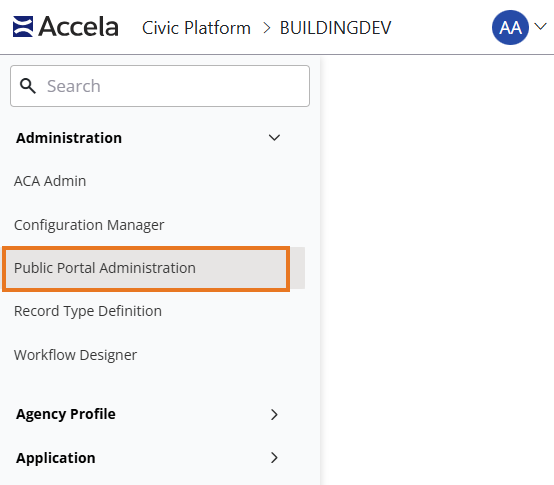
From the user account menu, select Administration.
-
From the Administration menu, select Administration > Public Portal administration.
ACA vs Public Portal home page functionality
The Public Portal home page provides the functionality our agencies and the market have been asking for. We plan to iteratively add more functionality as we receive feedback from our customers.
This first release of Public Portal will not include:
-
Announcements as they work today in ACA.
-
The ability to run reports from the home page.
Note: This functionality is still available on other ACA pages. We are working to give agencies the ability to display dashboards/reports in Public Portal. We will be sharing more details soon. -
The ability to view a Collection from the home page.
Note: This feature is still available on other pages in ACA.
Redirects between ACA and Public Portal
Public Portal is integrated with your current version of Accela Citizen Access. There is some functionality that you will do within Public Portal and some workflows that you will continue to complete in ACA. There will be URL redirects between each product as you explore Public Portal. Note that the Public Portal URL will change as you are redirected between each site.
 User home page configuration
The Home page configuration allows administrators to create a public user-centric, modern experience to guide the user to their task. You can configure the following sections in the Home page configuration screen:
-
Background image
-
Home page version
-
Action cards
-
OpenCounter buttons
-
-
Title and subtext - Welcome message
See also
Background image
The background image, also known as the "hero image," is the image that displays at the top of your Public Portal website. A strong, high-resolution image helps establish trust, communicate purpose, and create an immediate emotional connection between your agency and the public. This is a new feature for the initial Public Portal release.
How can my agency prepare for this feature?
Select a high-quality image that will give a positive first impression for people logging into your Public Portal website.
Who should set up this feature?
Agency staff with access to Civic Platform. No coding knowledge is required.
How long does this feature take to set up?
After the image has been cleared by your agency's branding department, it should take less than a minute to upload the image and then publish to the home page.
See also
Home page version
Home page action cards
Home page action cards allow your agency to highlight popular permits or licenses that you would like your constituents to fill out. They also can be used to direct the user to common tasks like scheduling an inspection on their permits. They can be used to provide FAQs or links to pages on other websites.
How can my agency prepare for this feature?
Before the release, meet with a representative from each dept that provides online permit/license applications. Work together to identify what cards make the most sense to include on the homepage for your agency.
Who should set up this feature?
Agency staff with access to Civic Platform. No coding knowledge is required.
How long does this feature take to set up?
After your agency has decided what cards should be included, setting them up through the new CMS should take an hour.
Tip: Set up time with representatives from all departments that use online permitting/licensing. Discuss and decide which tasks or information are most important for your users to achieve when using Public Portal. Think about the types of questions you receive:
-
Is there a card or cards you can create that would lead to the answer of that common question?
-
What are the top used record/license types?
Consider your agency’s goals and then help Public Portal users find the info/tasks they need to support your goals.
See also
OpenCounter buttons
The OpenCounter interface creates a step-by-step guide for users that will walk them through workflows for applications, licenses, and other common tasks. This interface differs from the action cards by providing a guided tour for users and making the online workflow process as painless as possible. Similar to action cards, you can create OpenCounter buttons that highlight popular permits or licenses that you would like your constituents to fill out. OpenCounter buttons also can be used to direct the user to common tasks like scheduling an inspection on their permits. They can be used to provide FAQs or links to pages on other websites.
How can my agency prepare for this feature?
Before the release, meet with a representative from each department that provides online permit/license applications. Work together to identify what cards make the most sense to include on the homepage for your agency.
Who should set up this feature?
Agency staff with access to Civic Platform. No coding knowledge is required.
How long does this feature take to set up?
After your agency has decided what cards should be included, setting them up through the new CMS should take less than an hour.
Tip: Set up time with representatives from all departments that use online permitting/licensing. Discuss and decide which tasks or information are most important for your user to achieve when coming to the Public Portal. Think about the types of questions you receive:
-
Is there a card or cards you can create that would lead to the answer of that common question?
-
What are the top used record/license types?
Consider your agency’s goals and then help the Public Portal user find the info/tasks they need to support your goals.
See also
Title and subtext
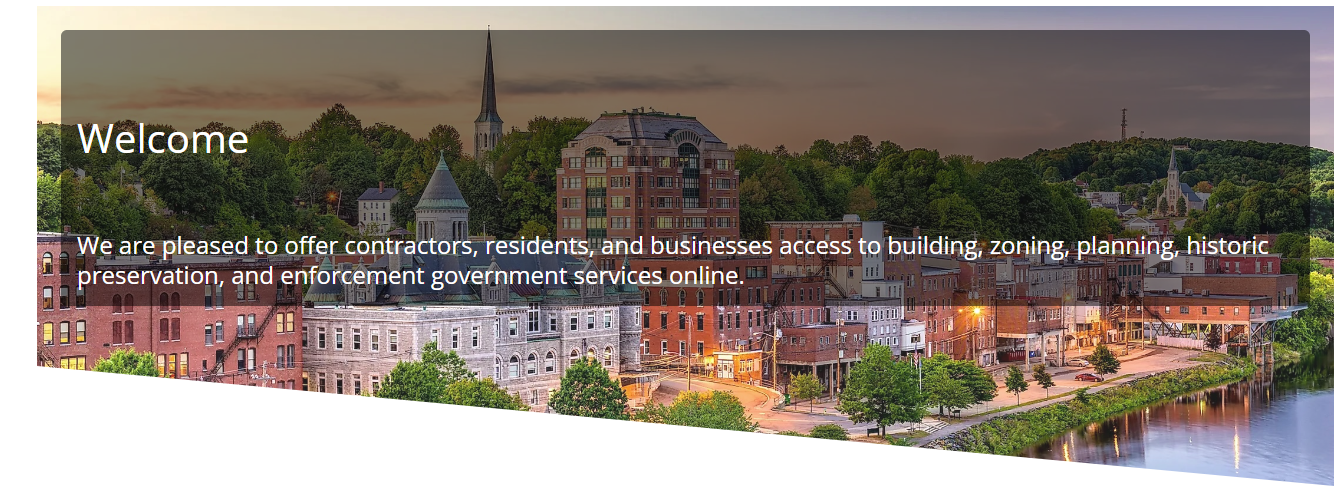
The title displays as a splash message across your background image and the subtext displays beneath the title.
Example: This is an example of how the title, subtext, and background image display in the Public Portal.
How can my agency prepare for this feature?
Decide what title and subtext you want for your home page.
Who should set up this feature?
Agency staff with access to Civic Platform. No coding knowledge is required.
How long does this feature take to set up?
After you have decided on your title and subtext, this should take less than five minutes.
See also
Navigation menu
The navigation menu allows public users to easily find information they are looking for. You can use custom wrappers to change the order or look and feel, and also to add links to the navigation in Public Portal. Public Portal's navigation allows you to add navigation items that link to internal pages in your Public Portal site and to external pages.
How can my agency prepare for this feature?
For the first release, Accela will provide you with navigation links to the modules you have today in Citizen Access that are native to the Accela product. This will not include navigation items you have added through a custom wrapper.
Based on your configuration, you will see the top level navigation item, then the tasks the public user can complete under the top level navigation.
To prepare for implementing this feature, take time to review the following items for your left pane navigation menu:
-
What are the components of your left navigation that uses custom wrappers?
-
Of those items, what are essential components that need to stay?
-
What are components that are rarely used?
-
Where are places that you frequently get calls about difficulties navigating or other errors?
-
-
How does your existing navigation compare with out-of-the-box Accela Citizen Access?
Decide on a list of items you will want to add to the navigation and where it will link so that anyone from your team can implement them.
Who should set up this feature?
Agency staff with access to Civic Platform. No coding knowledge is required.
How long does this feature take to set up?
If your agency is comfortable with the navigation items ported from Accela Citizen Access, you do not have to do anything. If you would like to add a few more navigation items or reorder them, it will take only a few minutes.
Best practice
The left navigation is used to help public users to find their way around the site. When setting it up, think about what your users' goals are, and then ensure that the labels for your navigation items will be easy to decipher and also tell them what to expect. You want navigation to be predictable to your users and require very little thinking.
See also
Footer
Use the footer to provide links to key content, such as contact information and common pages. The footer allows you to add a copyright with the year and logo, as well as content that can link to any site.
How can my agency prepare for this feature?
-
Look at the footer for your existing site and ensure that you have thought through which information is essential and which you do not plan to pull forward into the next iteration.
-
Ensure you have all URL links and text ready to implement.
-
Decide if you want your logo on the footer and where it will display.
-
Decide how many columns of information you will need and what you would like to put in each column.
Note: You can have up to four columns in the footer.
Who should set up this feature?
Agency staff with access to Civic Platform. No coding knowledge is required.
How long does this feature take to set up?
If all your footer preferences are compiled in advance, less than ten minutes.
Best practice
People often use footers as a last resort to find important content they could not find in the body of a site. They expect to see utility links like contact information, customer-service information, privacy policy, terms of use, and external links (like social media). They may also expect user management links including registration, log in, password change, forgot password flows, and so forth.
See also
Branding
You can brand the entirety of your Public Portal so that your users have a modern and accessible experience every time they interact with the site. In the past, agencies have used various tools to brand their Citizen Access site. Wrappers, Brand Builder, and partner products have been developed to improve the look and feel of Accela Citizen Access. Now, you can configure and easily edit branding choices that are accessible all from Public Portal administration via CMS.
How can my agency prepare for this feature?
-
Confer with your team and compile your branding documents. If necessary, talk to your design team to get the HEX Codes for your primary and secondary colors.
-
Ensure you have the most up-to-date version of your logo and a high-contrast version of your logo as well.
-
You will make decisions about the shape of buttons on your site as well as primary and secondary colors. You will also choose the color for the footer of your site.
Who should set up this feature?
Agency staff with access to Civic Platform. No coding knowledge is required.
How long does this feature take to set up?
If all documents, styles, and logos are compiled in advance, less than ten minutes.
See also
User management
The new user management system released with Public Portal delivers a modern, secure, and intuitive identity experience for both agencies and your constituents. This transition replaces the legacy Citizen Access user management system with a streamlined, public-user-first solution.
User management enhancements for registration, change password, forgot password, and log in/log out include:
-
Reduced support burden: Agencies gain a self-service password reset flow, thus eliminating the need for staff to manually assist with forgotten passwords.
-
Improved trust and security: With industry-standard authentication, agencies can confidently offer a secure login experience that meets modern expectations.
-
Future-ready architecture: Built to support SSO integrations with agency-preferred IDPs (such as Okta and Azure AD), this system positions agencies for long-term scalability and interoperability.
How can my agency prepare for this feature?
Once an agency goes live in production with the Public Portal, as your public users come to the Public Portal for the first time, they will be automatically transitioned to the new system.
Accela will provide you with a list of any current public users who do not have the required information to migrate to the new system. The required fields for a user in the new user management system for a public user account are:
-
Username
-
Email
-
Password
If any of your public users do not have the required information, you will need to add that information to the current Accela Citizen Access user management table.
Who should set up this feature?
If you are onboarding your own agency to Public Portal, anyone who has access to the information stated above. No coding knowledge is required to set up this feature.
Both groups will need the following before you begin:
-
Logo
-
Email address you want Public Portal emails coming from
-
Email and/or phone number that you would like to provide to public users if they get locked out of their account or are having trouble
-
Physical agency address that will display in messaging and in the Public Portal
-
Display name your agency wants in emails sent to public users
How long does this feature take to set up?
The user management feature set up is part of the automated provisioning process. Once you have collected the information, it should take about ten minutes.
See also
Site management
You can use Site management in Public Portal administration to complete the following tasks:
To access Site management
-
Log in to Civic Platform.
-
Select the user account icon > Administration .
-
From the Administration menu, select Administration > Public Portal.
-
Select Site management.
Dashboard
The Public Portal dashboard provides registered users with a centralized view of their transaction records, outstanding actions, recent activity, and high-level stats (e.g., fees due, number of licenses). When enabled, it replaces the legacy Accela Citizen Access dashboard for authenticated users.
-
You can Enable or disable the Public Portal dashboardin Site management
-
You can Preview the Public Portal dashboard in Design
-
You can Getting started on the dashboard
-
You can Getting started in Design
Additionally, the dashboard displays record activity cards.
Permit picker
The permit picker offers a centralized, user-friendly way for citizens to browse and begin applications for available permits. It supports role-based visibility, dynamic search, and configurable content.
-
You can Enable or disable the permit picker in Site management
-
You can Preview the Public Portal dashboard in Design
-
You can Getting started of the permit picker
How can my agency prepare for this feature?
Configure record types and record type filters in Civic Platform administration and Accela Citizen Access Module settings.
See also