Navigation menu
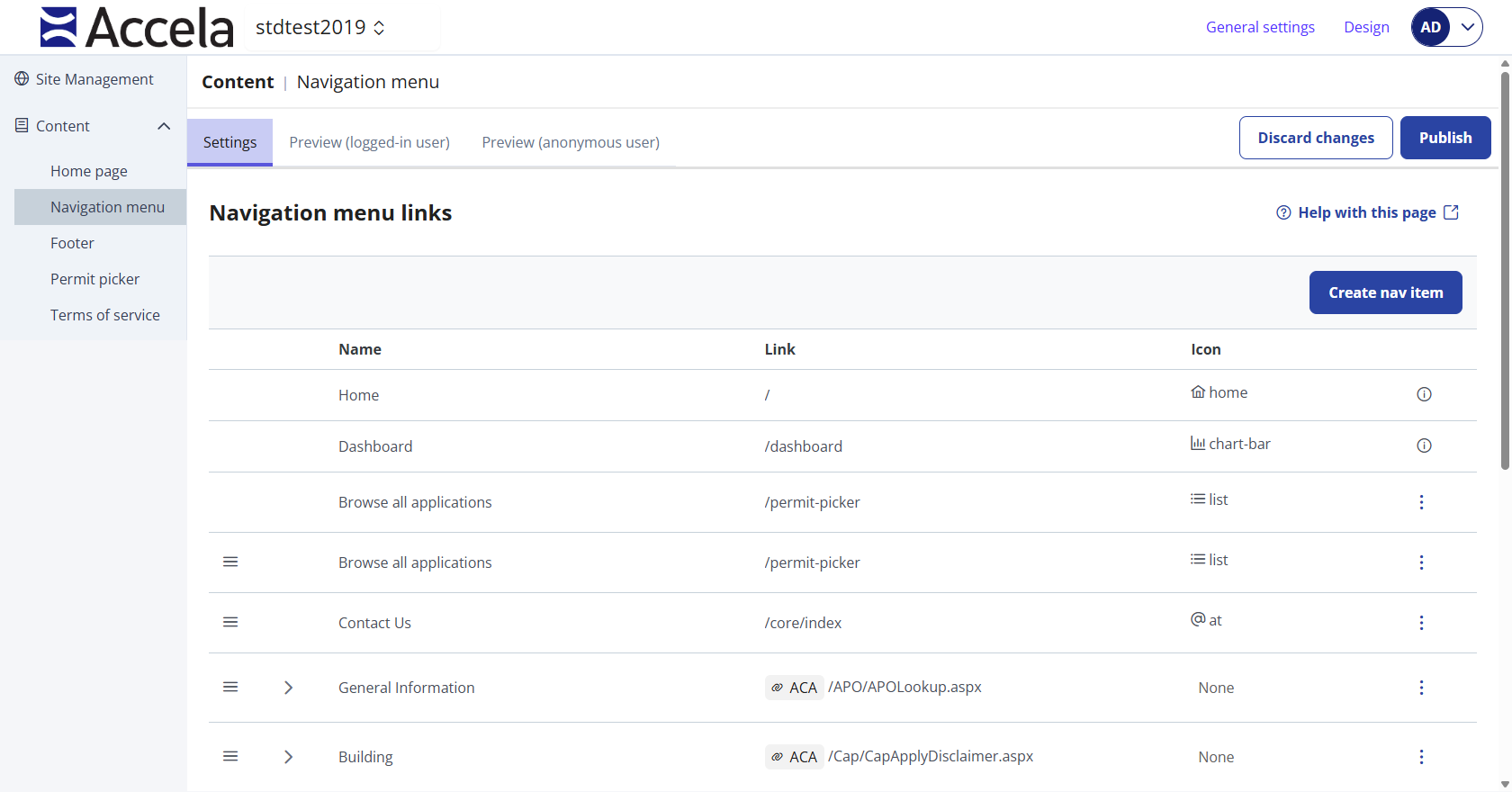
The navigation menu is the vertical menu on the left side of the Public Portal user page. It provides links for public users to navigate different sections of the portal. By default, it includes items like Home, Dashboard (if user is logged in), and any modules your agency has, such as Building, Planning, Licenses. You can add navigation links to point to external resources or additional pages, and you can reorganize the menu structure.
The page will list all current navigation entries in an agency’s Public Portal. Top-level items (those that display in the menu without indentation) are shown with their name and link. If a top-level item has sub-links, it will have a collapse/expand arrow (▶/▼) next to it.
| Navigation menu links column name | Column description |
|---|---|
| Drag handle icon | Use this icon to reorder your action cards on the public user home page. This icon only displays for action cards in the Shown on home page section. |
| Name | This is the name that displays on the user home page in the navigation menu for public users. |
| Link | The URL that the navigation item is linked to. |
| Icon |
The icon associated with this navigation menu item. Can also have None as a value. |
| Action menu |
Select an action for the card:
|
Preview the navigation menu
In the Navigation menu screen, you can preview the navigation screen as a logged-in user or an anonymous user.
 See also