Preview the user home page
As you configure the user home page and navigation, you can preview the user home page to help you visualize changes before they go live.
The administration Home page settings page updates the preview of the home page in real-time as you make changes. For example, when you edit the welcome text or toggle which cards are shown, you’ll see the preview reflect those changes immediately. Use this option to verify layout and text. You can even hover over long titles in the preview to ensure the full text is readable (a tooltip with the full title will appear if it’s truncated).
Remember that some links are visible only to logged-in users. To preview those, sign in to the portal as a test user. Likewise, view the portal in a logged-out state (you can use a browser’s incognito mode) to confirm which items a public user sees.
To preview your changes
-
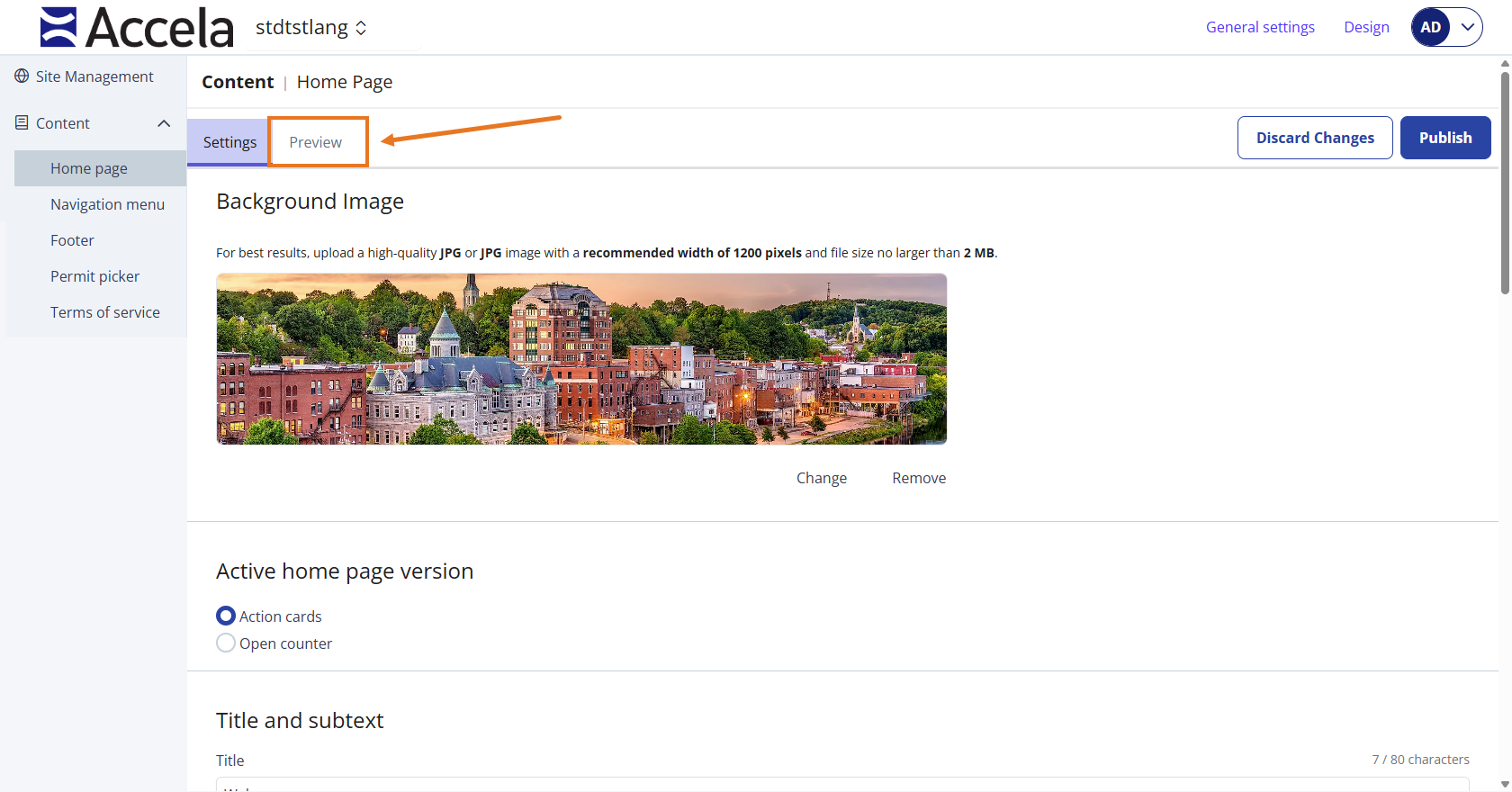
In the Home page, Footer, Permit picker pages, select the Preview tab.
-
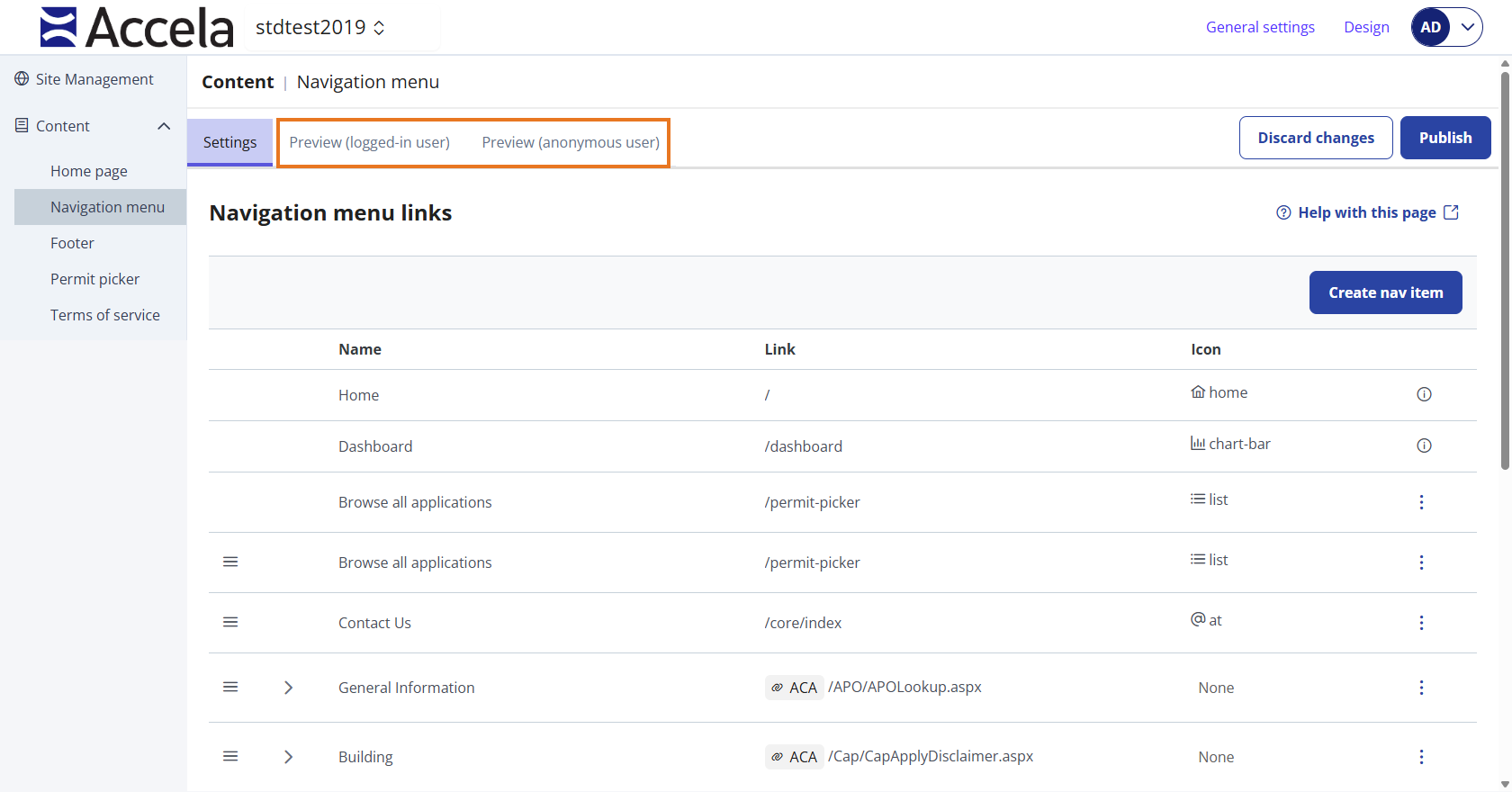
In the Navigation menu screen, you can preview the navigation screen as a logged-in user or an anonymous user.
 See also