Add, edit, or delete content from the home page footer
You can have up to four columns in the footer, as well as an image and a copyright notice. Use the Design editor to configure the organization of your user home page footer. See Footer design editor for more information.
Add footer content
-
From Public Portal administration, select Content > Footer.
-
In the Footer content section, select Add column.
-
Enter the heading for the column.
-
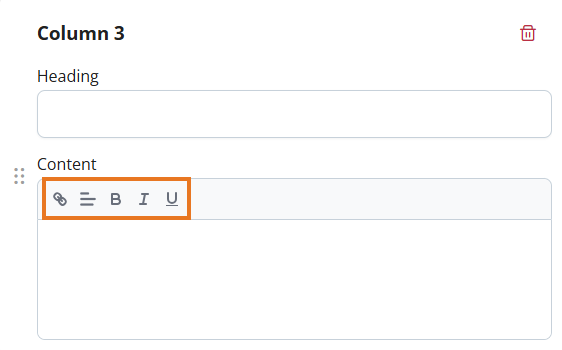
Enter the content for the column.
Tip: Use the content styling toolbar to configure the format and style of the content, as well as add a link.
-
Select Publish to save your changes to the public user home page.
-
Select Discard changes to undo your changes.
-
Edit footer content
-
From Public Portal administration, select Content > Footer.
-
In the Footer content section, identify the footer column you want to edit.
-
Edit or update the footer content.
Tip: Use the content styling toolbar to configure the format and style of the content, as well as add a link.
-
Select Publish to save your changes to the public user home page.
-
Select Discard changes to undo your changes.
-
Delete footer content
-
From Public Portal administration, select Content > Footer.
-
In the Footer content section, identify the footer column you want to delete.
-
Select the Delete icon in the corner.
-
Select Publish to save your changes to the public user home page.
-
Select Discard changes to undo your changes.
-
 See also