Change or remove the background image on the user home page
After you have uploaded a background image for the user home page, you can easily update or remove it.
Tip: Preview the user home page when you make changes.
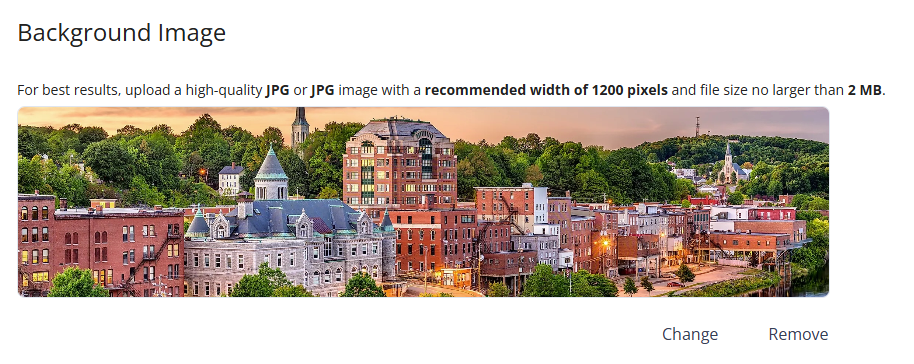
Change the background image on the user home page
-
From Public Portal administration, select Content > Home page.
-
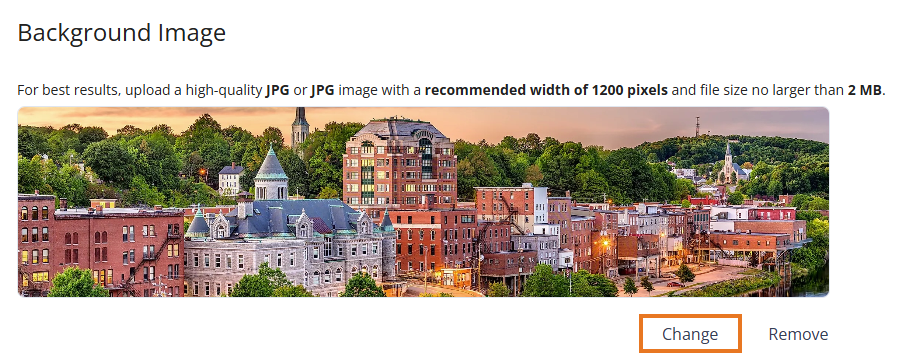
In the Background image section, select Change.
-
Upload a new image from the file explorer on your desktop.
-
(Optional) Crop or adjust the image.
-
Select Publish to save your changes to the public user home page.
-
Select Discard changes to undo your changes.
-
Remove the background image from the user home page
-
From Public Portal administration, select Content > Home page.
-
To remove the background image, select Remove.
-
Select Publish to save your changes to the public user home page.
-
Select Discard changes to undo your changes.
-
 See also