Enable or disable a Public Portal account
You can enable or disable a Public Portal user account from the Public user page in Civic Platform.
To enable or disable a Public Portal account
-
Log in to Civic Platform.
-
From the user account menu, select Administration.
-
Select System tools > Public user.
-
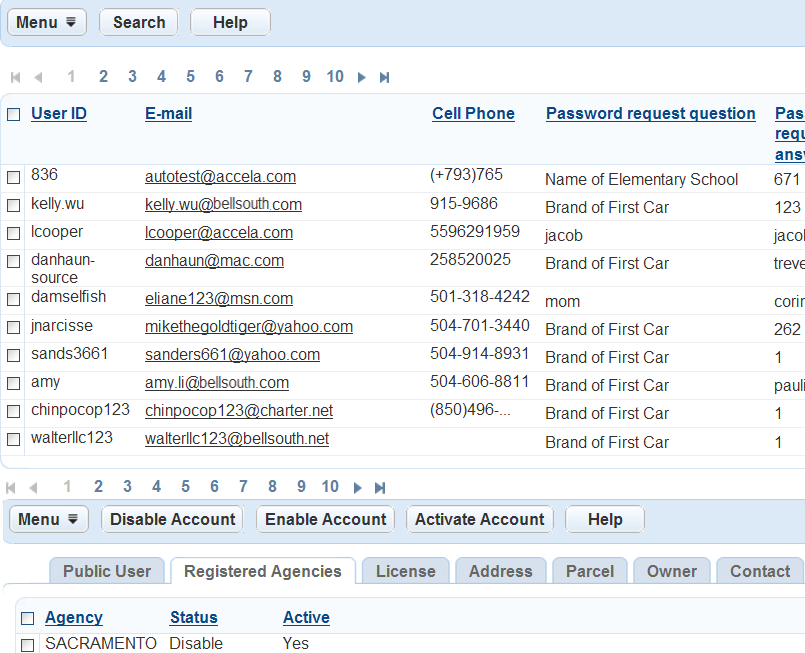
Select the user account which requires a change of status from the Public user list.
-
Select the Registered agencies record tab.
-
Select the check box next to the agency that requires a change status.
Notes:
-
If you have enabled the multiple agency administration feature (see Set up cross-agency operations), after a public user attempts to log into Public Portal hosted by a different agency from the one that created the account, you can enable and activate the public user account in the new agency.
-
If you enable an authorized agency or authorized agent clerk account in a different agency from the one that created the account, the account type is Citizen, not Authorized agent nor Authorized agent clerk, in the new agency.
-
-
Select one of the following buttons to change the status of an account:
-
Disable account: Select this button to disable the public user for the agency. Disabling an account means that the public user is not able to log into Public Portal.
Note: If you disable an authorized agent account, the authorized agent account becomes inactive, and all the authorized agent clerk accounts created by the agent account become inactive as well.
-
Enable account: Select this button to enable the public user to use the account for the agency.
-
 See also