Action cards
Action cards display on the public user home page of Public Portal. You can use action cards to:
-
Highlight popular permits or licenses
-
Direct the public user to common tasks
-
Provide FAQs or links to pages on other agency websites
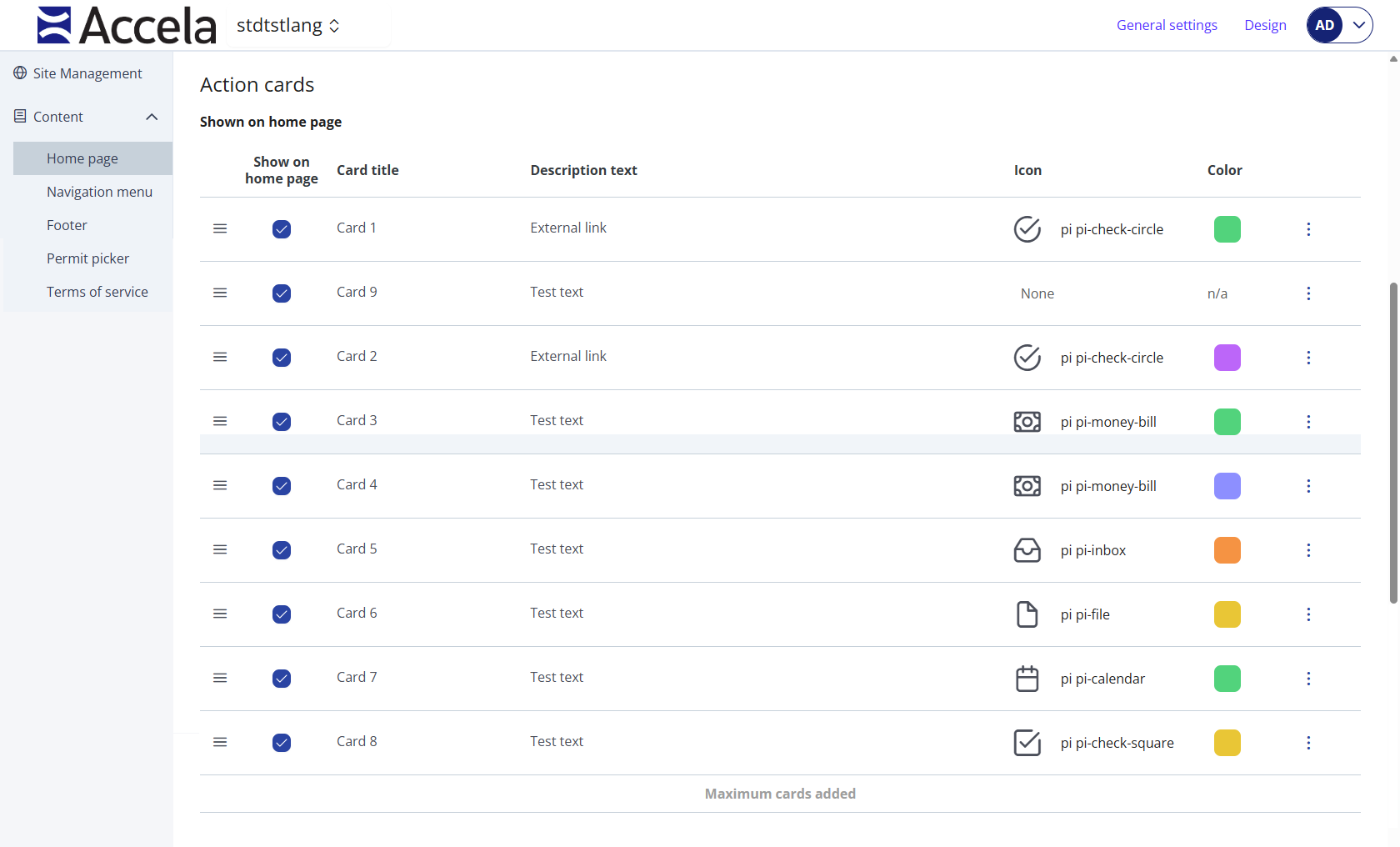
The Action cards section of the administration Home page screen has two tables:
-
Shown on home page: These are cards that are currently displaying on the user home page for public users. You can reorder and edit these cards, as needed. You cannot have more than nine cards displayed at one time or fewer than three.
-
Not shown on home page: These cards are created and configured but not currently displaying on the user home page for public users. You can edit and delete these cards, as needed. You can also create a new action card from this section.
Tip: Use the Search bar to navigate the Not shown on home page section if you have a large number of undisplayed cards.
Each action card section list displays the following information:
| Action card column name | Column description |
|---|---|
| Drag handle icon | Use to reorder your action cards on the user home page. This icon only displays for action cards in the Shown on home page section. |
| Show on home page | Select this check box to display this card on the user home page. Clear this check box to remove the card from displaying on the user home page. |
| Card title | This is the title that displays on the user home page for public users. |
| Description text | The description of this card that displays on the user home page for public users. |
| Icon |
The icon associated with this card. Can also have None as a value. |
| Color | The color the card is displaying on the user home page. |
| Action menu |
Select an action for the card:
|
 See also