Add or remove an action card from the user home page
You can add or remove cards from the user home page after they are created.
Add an action card to the user home page
-
From Public Portal administration, select Content > Home page.
-
Ensure that Active home page version is set to Action cards.
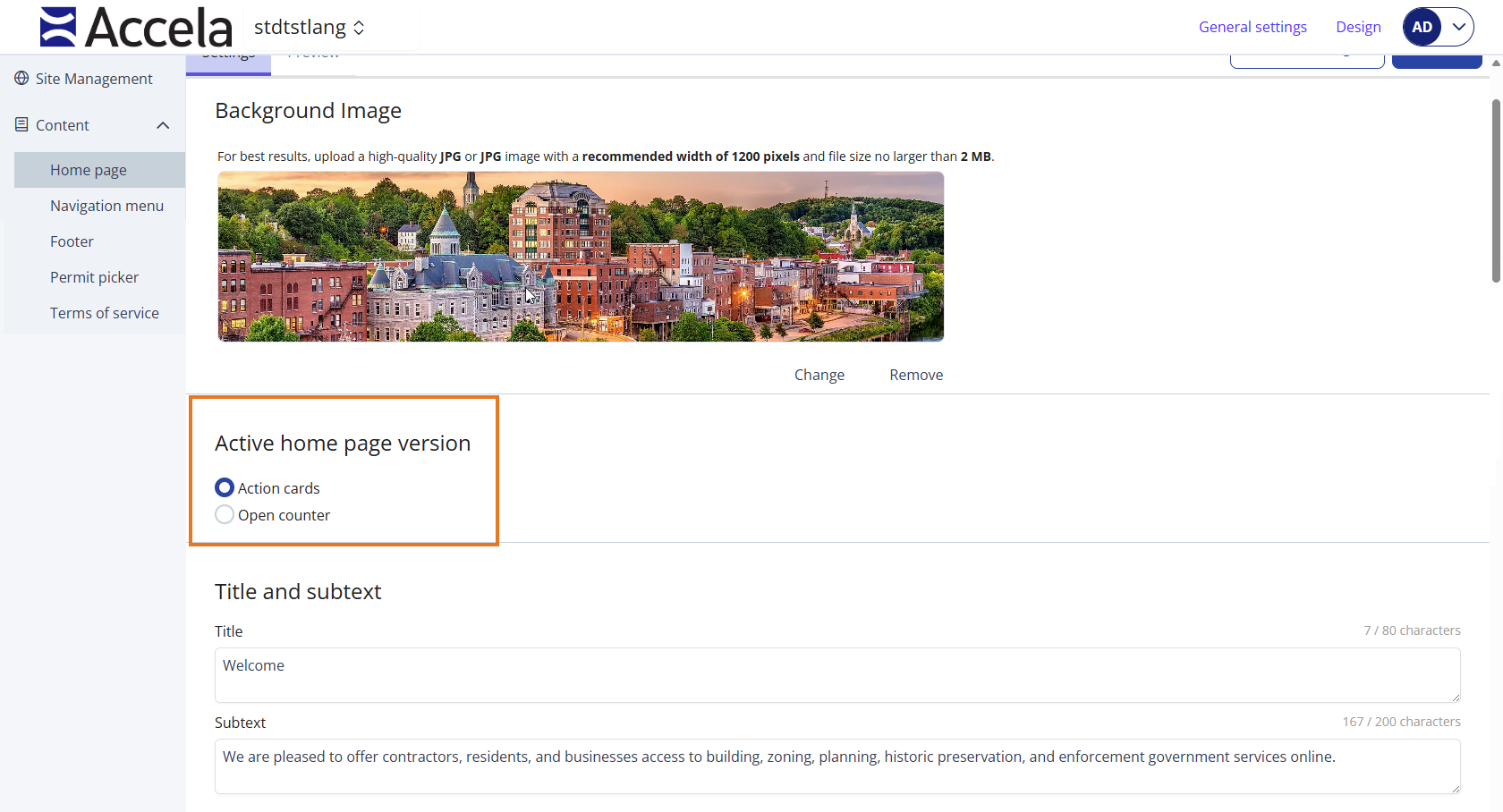
-
Under the Action cards section, navigate to the Not shown on home page section.
-
Select the check box in the Show on home page column. This will move the action card to the Shown on home page section.
Note: You can display a maximum of nine cards on the user home page. -
Select Publish to save your changes to the public user home page.
-
Select Discard changes to undo your changes.
-
Remove an action card from the user home page
-
From Public Portal administration, select Content > Home page.
-
Ensure that Active home page version is set to Action cards.
-
Under the Action cards section, navigate to the Shown on home page section.
-
Select the check box in the Show on home page column. This will move the action card to the Not shown on home page section.
Note: You cannot have fewer than three cards displayed on the user home page. -
Select Publish to save your changes to the public user home page.
-
Select Discard changes to undo your changes.
-
 See also