Add or remove an OpenCounter button from the user home page
You can add or remove buttons from your home page after they are created.
Add a button to the user home page
-
From Public Portal administration, select Content > Home page.
-
Ensure your Active home page version setting is set to OpenCounter.
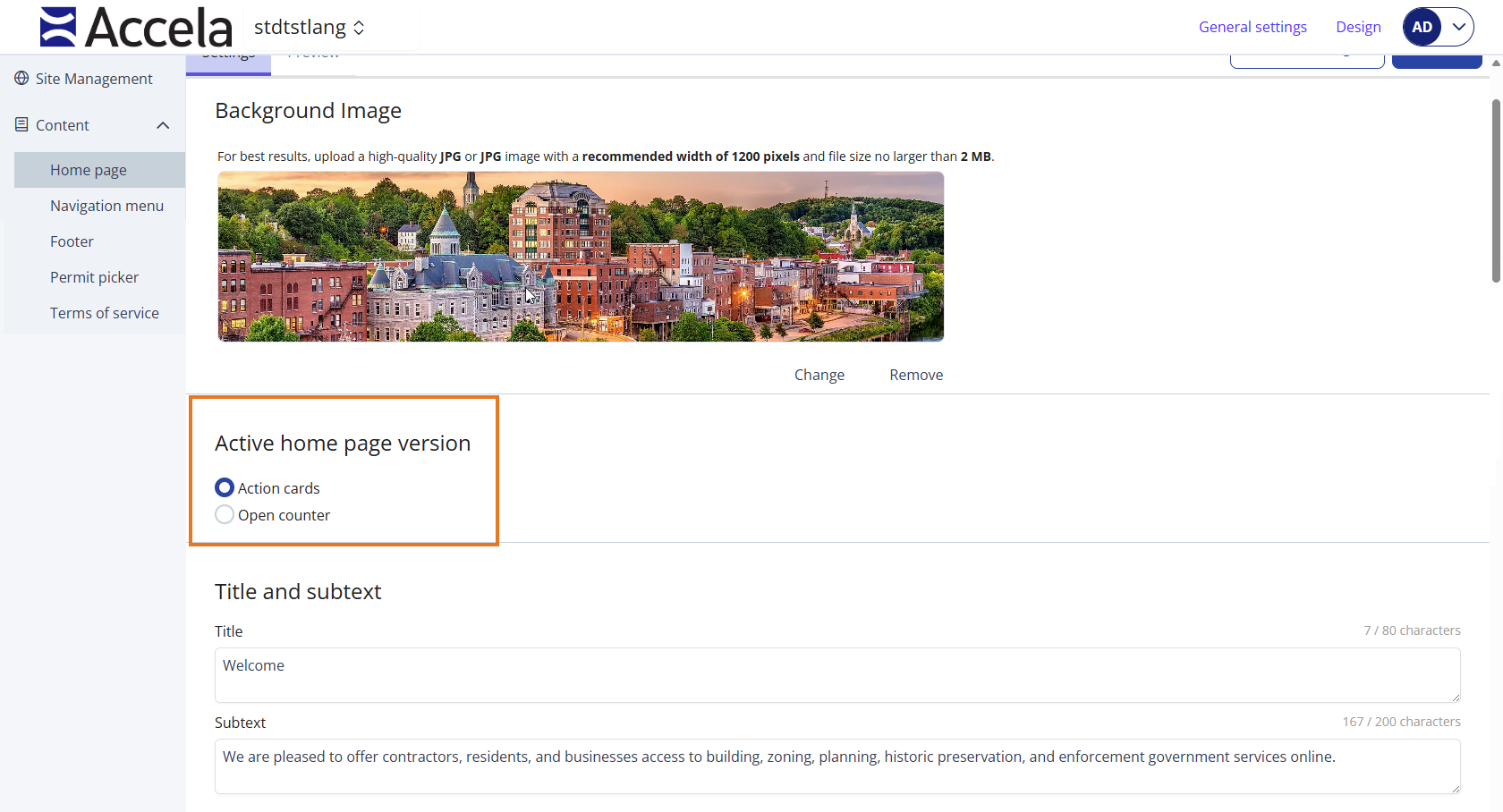
-
Under the Buttons section, go to the Not shown on home page section.
-
Select the check box in the Show on home page column. This will move the action card to the Shown on home page section.
Note: You can display a maximum of four buttons on the user home page. -
Select Publish to save your changes to the user home page.
-
Select Discard changes to undo your changes.
-
Remove a button from the user home page
-
Go to Content > Home page.
-
Ensure your Active home page version setting is set to OpenCounter.
-
Under the Buttons section, go to the Shown on home page section.
-
Select the check box in the Show on home page column. This will move the button to the Not shown on home page section.
Note: You cannot have less than one button displayed on the home page. -
Select Publish to save your changes to the user home page.
-
Select Discard changes to undo your changes.
-
 See also