Provision and migrate Public Portal
Setting up new features can be complex and time-consuming. Typically these processes require you to know which standard choices or FIDs you need to update, make the changes in the given environment, then clear cache to let your changes take affect.
For the Public Portal, with the click of a button and a few minutes, agencies are provisioned and can start using the product immediately in the environment(s) they choose.
This can be done in three, easy steps:
-
Auto-provisioning - Enabling Public Portal for your agency
-
Go live - Pushing your Public Portal live for public users
-
Migration - Copying your Public Portal to other environments
This is an easy, step-by-step solution to set up your agency’s Public Portal in any environment.
How do I prepare for this step?
Decide as an agency which environment you want to use as your Public Portal testing environment.
Who should complete this task?
Your agency’s Accela administrator.
How long will this task take?
5-10 minutes
 1. Auto-provision Public Portal
You can easily provision the Public Portal for your agency. This will replace the Accela Citizen Access interface for your public users and replace it with the updated Public Portal features.
To provision Public Portal
-
Log in to Civic Platform.
-
Select the User account menu, then select Administration.
-
In the Administration menu, select Administration > Public Portaladministration.
-
Select Get started now.
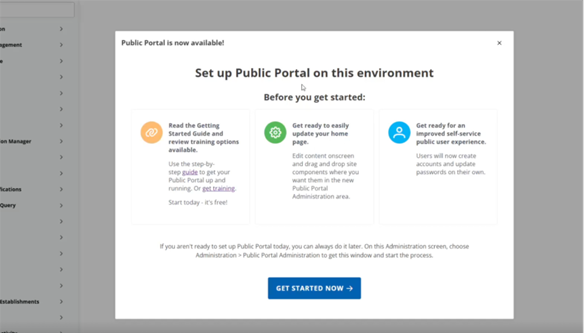
-
Complete the questions about your agency.
-
Enter your agency name and select Next.
-
Enter you agency's preferred contact phone number and email address.
Note: This information should be for someone who is available for a public user to reach out to with registration or log in issues. -
Select Next.
-
Enter a mailing address and select Finish setup.
After selecting Finish setup, it might take a few minutes.
-
-
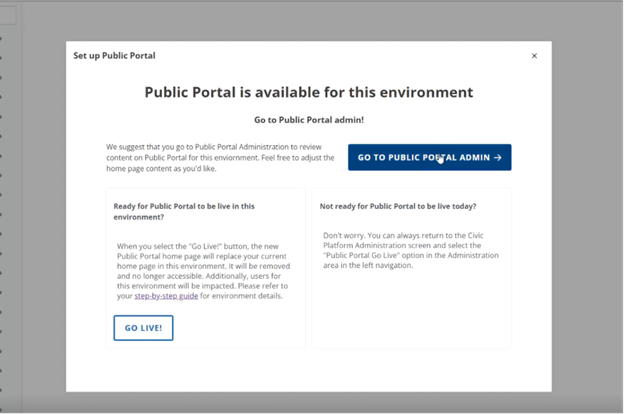
Once completed, select Go to Public Portal Admin to begin customizing your Public Portal. You can choose to "Go live" with Public Portal immediately, or configure your Public Portal before launching.
2. Go live with the Public Portal
Now you have access to explore Public Portal functionality in Public Portal administration before replacing your Accela Citizen Access (ACA) home page and user management (log in, forget password, registration) with Public Portalin this environment. From there, explore Public Portal administration by adding your branding in the Design tab then configuring your home page cards and testing your links to ACA.
When you are ready to "go live" in production, this means that you want your ACA home page and user management to be replaced by the Public Portal and the new authentication service. Locate the Go Live instructions on the left navigation of Public Portal administration.
To go live with Public Portal
-
When you are ready to go live with the Public Portal, log in to Civic Platform.
-
Select the User account menu, then select Administration.
-
In the Administration menu, select Administration > Public Portaladministration.
-
On the left navigation bar, select Public Portal Go Live.
-
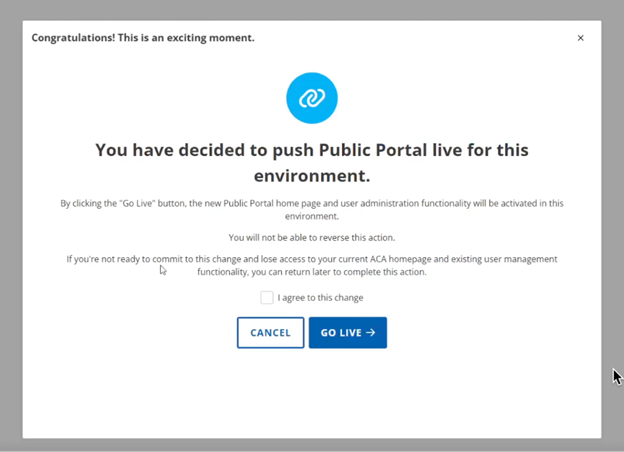
A pop-up window displays to start the process to push the new Public Portal home page and user management system to be live for this environment.
Important: When you push this home page live, your current home page in this environment will be removed and no longer accessible. The new Public Portal home page will replace it. Additionally, you will need to create new public user testing accounts for this environment. Your test users in lower environments will not be migrated. We will migrate your public users in production. -
Select the I agree to this change checkbox, then select Go Live.
3. Migrate
You can copy your Public Portal home page configuration from one environment to another to avoid manually duplicating work. When you migrate the Public Portal using this process, it is a TOTAL duplicate of the original source Public Portal environment.
You migrate the Public Portal from the source environment to the target environment.
-
Log in to the target environment, the environment where you want to migrate Public Portal.
-
In Civic Platform administration, select Public Portal migration to launch the migration tool.
Important: Only administrators with the FID 0387 can initiate this process. -
Select the source environment you want to migrate from and authenticate to it with your username and password. You must have access to the source environment with FID 0387.
-
Con firm you wan to migrate all your home page content by typing I am sure.
Notes:
-
If the source and target environments are both Live, when you migrate all changes will be Live in the target environment upon completion. Carefully ensure you have configured everything correctly prior to migration. If the target environment is not Live, then it will not force Go Live even if the source environment is Live.
-
When you type “I am sure”, it needs to be case sensitive.
-
-
Select Copy and apply. This process may take several minutes.
-
If any part fails, you will receive an error with a trace ID and instructions to contact Support for assistance.
-
You may want to retry once before contacting support. Occasionally, migration will work upon a second attempt. Anything that previously migrated will be replaced, so there will be no duplications.
-
-
When successful, you’ll be informed and can visit the updated portal in the target environment.
Notes:
-
Provisioning must be completed in each environment (staging, nonprod, prod) separately. Only production Go live includes user migration.
-
Administrators cannot edit agency contact details post-provisioning at this time.
-
Public Portal migration should only be used when the source and target environments are the same version of Civic Platform.
-
Civic Platform SSO is not available for the migration tool for this release. We plan to offer this functionality in the future.
-
Migrating partial links from the home page and navigation will update the domain to match the correct environment.
Example: If you are migrating from Stage to NonProd1, the URLs will be updated to NonProd1. This only works for partial links and not external links. -
If you are migrating a new logo from the source, or if no logo has been applied in the target environment, re-upload the logo in the target environment so it displays correctly in emails sent to Public Portal users.
-
Although the migration tool indicates the process could take 2–4 minutes, it might take longer in some instances.
Public Portal go live in Production - Public user migration
When your agency decides to Go Live with the Public Portal in your production environment, Accela will migrate your eligible Accela Citizen Access (ACA) public users into the new authorization service. This ensures that your existing public users will continue accessing their records without interruption after the Public Portal replaces ACA’s login, registration and password reset flows.
This section outlines what administrators can expect during the production Go Live process and which users will not migrate.
What happens during Production go-live
When your agency initiates Go Live in the production environment:
-
Your Public Portal home page will replace ACA and the new authorization system will be live for new users to register.
-
Immediately after Public Portal is live, all eligible ACA public users in the legacy authentication system will be automatically migrated into the new system. This will silently run in the background.
-
Migration typically completes within minutes, depending on the size of your user base.
-
Your production Public Portalbecomes the active system for all public user sign in, registration, and forgot password activity.
-
Public users who successfully migrate will be able to log in and continue accessing the same records they could access in ACA.
Which users will not migrate
Some ACA public users cannot migrate due to structural issues in their account’s email address. These issues include:
-
Invalid email address syntax (invalid special characters in the alias, or missing “@” etc.)
-
Email addresses with an invalid top-level domain according to industry standards (this is the “.com”, “.org”, “.gov” part of the address)
Users who migrate but may lose access
Automated user migration does not block migration of users who provided a fake or erroneous email address, if the address passes structural checks. This includes users who provide an address like [email protected] or [email protected] (note the likely typo in “gmail”).
-
Users will migrate to the new authorization service.
-
Users may be able to log in and function as normal.
-
When the user needs to receive an authorization email like a password reset link and the person cannot access the email inbox associated with the user, they can lose access to Public Portal and their records.
How administrators should prepare
Admins can mitigate user migration issues by updating ACA user email addresses before production Go Live.
Ahead of your go live in production:
-
Accela will help facilitate mitigation through the creation of an artifact that identifies users with email addresses that have invalid syntax or may use invalid domains. Using this report, administrators can take corrective action before Go Live to ensure as many public users as possible migrate and retain access to their records.