Configuring Hotlink Settings
You can configure hotlink settings for Accela Silverlight GIS. Hotlinks allow agency users to pass parameters from the map control to a predefined URL.
For example, an agency user might want to view a building record stored in an application outside of Civic Platform, such as Laserfiche. If you configure a hotlink for Laserfiche, then an agency user can open Laserfiche directly from the map control.
When you configure hotlink settings, you determine the hotlink name and URL. You also indicate the map layer on which hotlinks can be available to users.
To configure hotlink settings
-
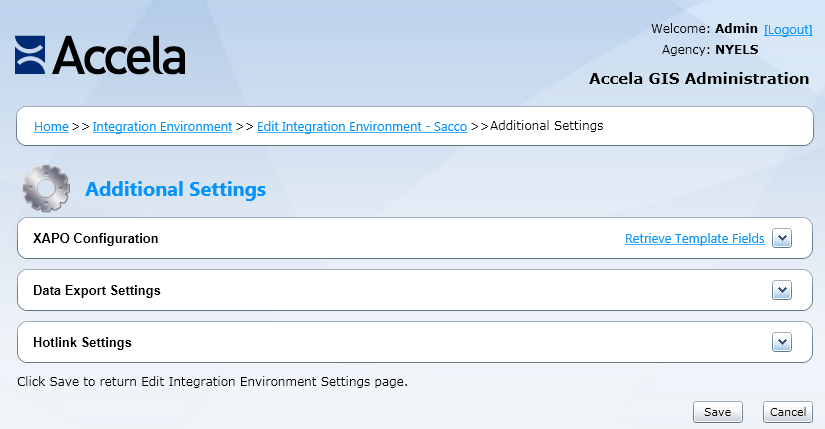
Navigate to the Additional Settings page.
The Accela Silverlight GIS Administration site displays the Additional Settings page.
-
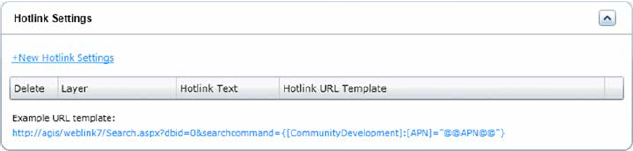
Navigate to the Hotlink Settings section.
The Accela Silverlight GIS Administration site displays the Hotlink Settings section.
-
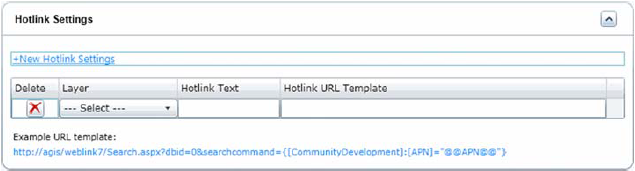
Click the New Hotlink Settings link.
The Accela Silverlight GIS Administration site displays the New Hotlink Settings section.
-
Complete the fields that display. For a complete list of fields, see Configuring Hotlink Settings.
-
Complete one of these steps:
-
If you want to configure your map integration environment with data export functionality, see Configuring Data Export Settings. If you want to configure your map integration environment with external address, parcel, and owner settings, see Configuring External Address, Parcel, and Owner Settings.
-
If you do not want to configure your map integration environment with data export functionality or external APO settings, click the Finish button.
The Accela Silverlight GIS Administration site displays a different page based on whether you are creating or editing a map integration environment.
If you are creating a map integration environment, the Accela Silverlight GIS Administration site displays the Integration Environment Settings page. If you are editing a map integration environment, the Accela Silverlight GIS Administration site displays the Edit Integration Environment page.
-