Configuring Data Export Settings
You can configure data export settings for Accela GIS users. When you configure data export settings, you determine which GIS fields users can export to a .csv or .xml file. Configure data export settings that reflect the data Accela GIS users might want to export.
For example, Accela GIS users might want to export data to create mailing labels. In this case, you need to configure data export settings that include First and Last Name fields, along with Street Number, City, State, and Zip Code fields.
To configure data export settings
-
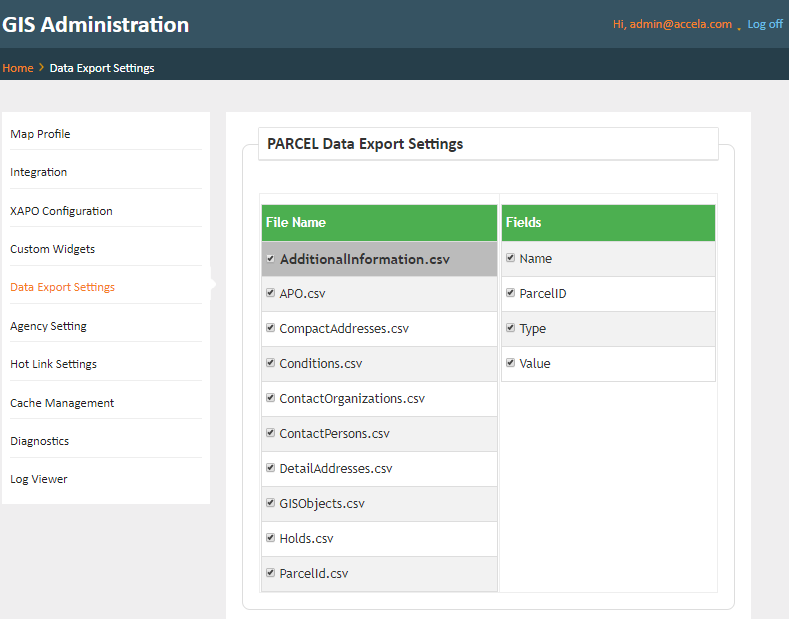
Click on the Data Export Settings link from the GIS Administration page.
-
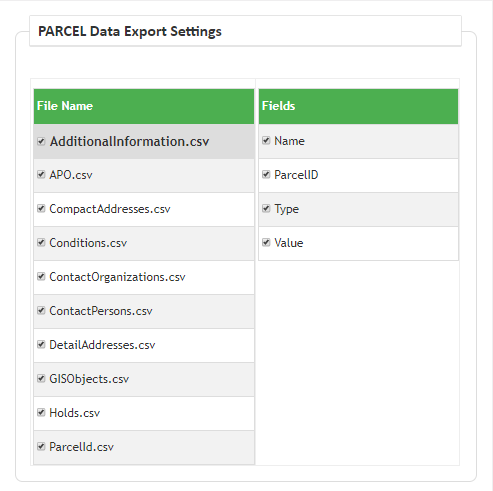
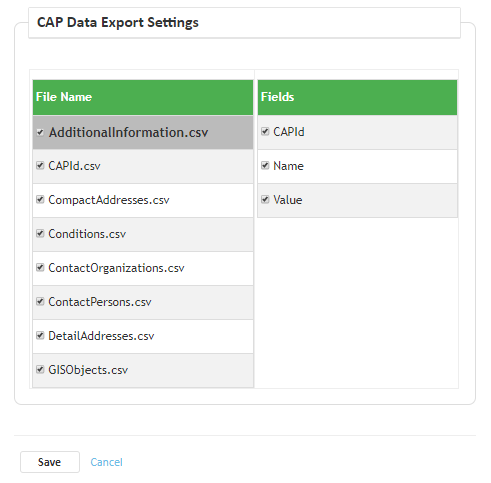
A PARCEL and CAP section appears.
-
Mark the check box next to the name of the file that you want to create a data export file.
-
Complete one of these steps:
-
If you want to configure your map integration environment with external address, parcel, and owner settings, see Configuring External Address, Parcel, and Owner Settings. If you want to configure your map integration environment with hotlinks, see Configuring Hotlink Settings.
-
If you do not want to configure your map integration environment with external APO settings or hotlinks, click the Save button.
The GIS Administration site displays a different page based on whether you are creating or editing a map integration environment.
If you are creating a map integration environment, the GIS Administration site displays the Integration Environment Settings page. If you are editing a map integration environment, the GIS Administration site displays the Edit Integration Environment page.
-
| File Type | File Name |
|---|---|
| CSV | AdditionalInformation, CompactAddresses, Conditions, ContactOrganizations, ContactPersons, DetailAddresses, GISObjects, Holds, ParcelID |