Edit a map integration environment
To edit a map integration environment
-
If necessary, log in to the Accela Silverlight GIS Administration site.
The Accela Silverlight GIS Administration site displays the Administration home page.
-
Click the Modify Configuration link.
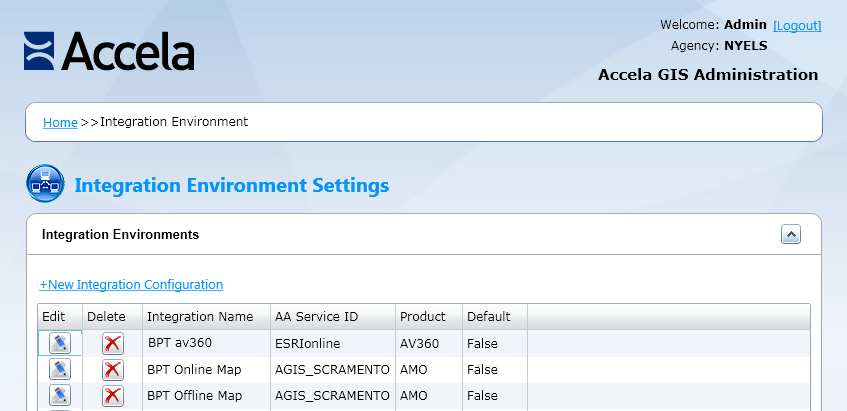
The Accela Silverlight GIS Administration site displays the Integration Environment Settings page.
-
Click the pencil icon next to the map integration environment you want to modify.
The Accela Silverlight GIS Administration site displays the Edit Integration Environment page.
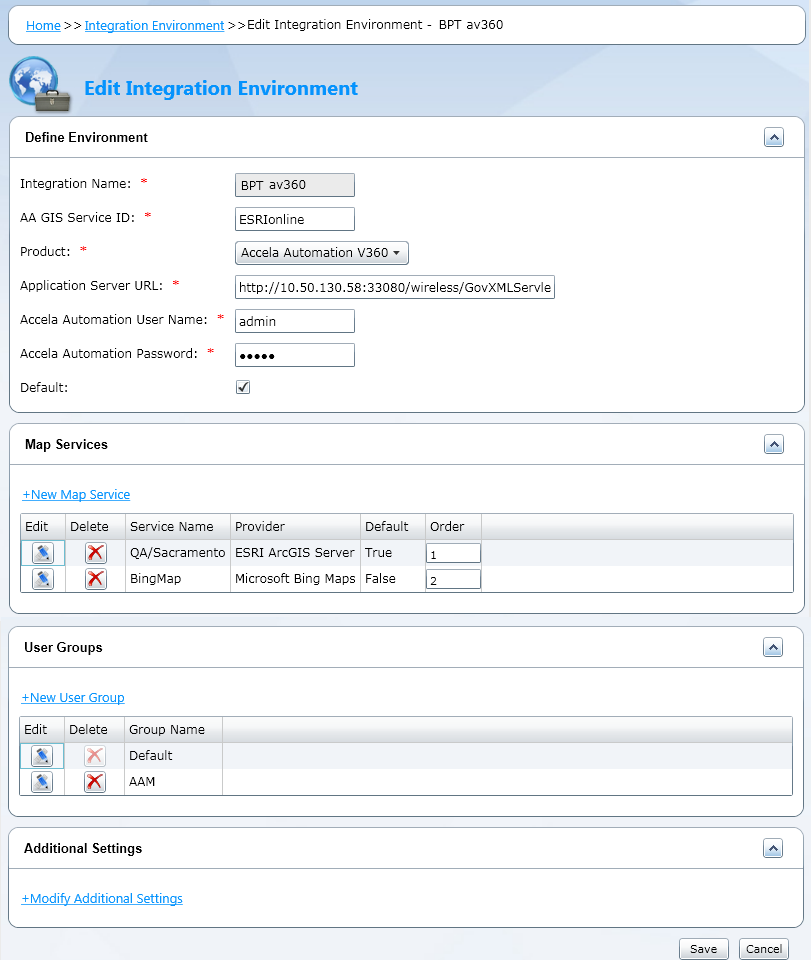
- Identify the section you want to edit.
- Complete one of these options:
-
If you want to edit the defined environment settings:
Complete the fields that display in the Define Environment section. For a complete list of fields, see Integrating Your Environment.
- If you want to edit the map service settings:
-
Click the pencil icon next to the map service you want to edit.
The Accela Silverlight GIS Administration site displays the Map Service Connection page.
-
Edit the fields as necessary.
For a complete list of fields, see Setting up a Map Service Connection.
- If you want to edit user group settings:
-
Click the pencil icon next to the user group you want to edit.
The Accela Silverlight GIS Administration site displays the User Group Permissions page.
- Edit the fields as necessary. For a complete list of fields, see Defining User Groups and Permissions.
- If you want to edit additional settings:
-
Click the Modify Additional Settings link.
The Accela Silverlight GIS Administration site displays the Additional Settings page.
-
Edit the fields as necessary.
For a complete list of fields, see Configuring Additional Settings.
- If you want to update or create a new data package to reflect changes to a GIS layer or verify that Accela Silverlight GIS generates a data package successfully:
-
Click the Offline Map Data Management link.
The Accela Silverlight GIS Administration site displays the Offline Map Data Management page.
-
Complete the settings as necessary.
For details, see Managing Offline Map Data.
-
Click the Finish button.
The Accela Silverlight GIS Administration site displays the Integration Environment Settings page.
-
Click the Save button.
The Accela Silverlight GIS Administration site saves changes to the selected integration environment.