Clearing
Cache Data Manually
The Accela Silverlight GIS cache temporarily stores the data that administrators
have defined in Accela Civic Platform. For example, record types, asset
types, and parcel masks. You can clear cache data manually or let
Accela Silverlight GIS automatically clear cache data every hour. After cache
data is cleared, Accela Silverlight GIS can retrieve the most current data from Civic Platform.
Accela recommends that you manually clear the Accela Silverlight GIS cache
after you change the cache item data in Civic Platform .
So Accela Silverlight GIS does not display obsolete data or ignore new data.
For example, if you add some new record types in Civic Platform
but the Accela Silverlight GIS cache is not cleared yet, the Record Type field
in the Accela Silverlight GIS Search panel does not show the new record types.
To clear cache data manually
-
Log in to the Accela Silverlight GIS Administration site.
The
Accela Silverlight GIS Administration site displays the Administration home page.
-
Click the Agency Settings link.
The
Accela Silverlight GIS Administration site displays the Agency Settings page.
-
Click the Refresh Cache link.
The
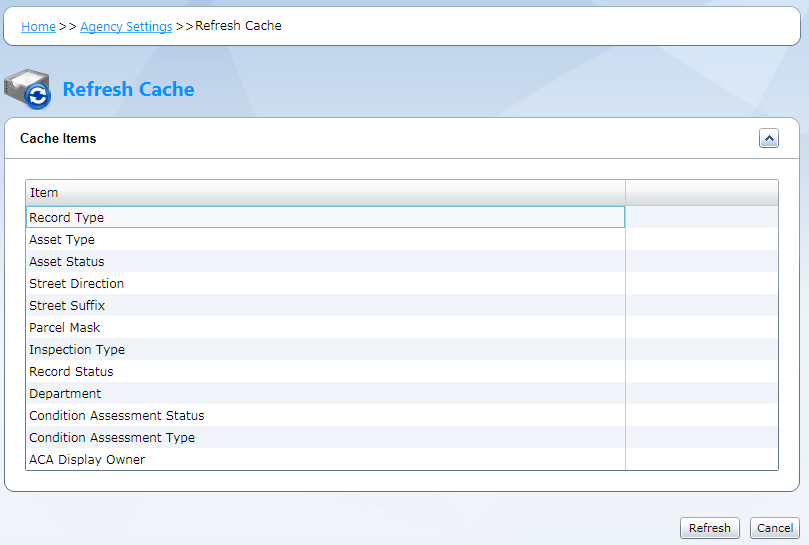
Accela Silverlight GIS Administration site displays the Refresh Cache page.
-
Click the Refresh button.
The
Accela Silverlight GIS Administration site clears all cache items.
Cache Items
| Cache Item |
Description |
| Record Type |
When you add or delete record types in Civic Platform, clear the cache to
show the most current options in the following windows: Accela Silverlight GIS > Search panel > Search by Records > Type >
Select Record Type Accela Silverlight GIS > Search panel >
Search by Inspections > Record Type > Select Record
Type |
| Asset Type |
When you add or delete asset types in Civic Platform, clear the cache to show the
most current options in the following windows: Accela Silverlight GIS >
Search panel > Search by Assets > Type > Select
Asset Type Accela Silverlight GIS > Search panel > Search by
Condition Assessments > Asset Type > Select Asset
Type |
| Asset Status |
When you add or delete asset statuses in Civic Platform, clear the cache to show
the most current options in the following drop-down
list: Accela Silverlight GIS > Search panel > Search by Assets
> Status |
| Street Direction |
When you add or delete street directions in Civic Platform, clear the cache to
show the most current options in the following drop-down
list: Accela Silverlight GIS > Search panel > Search by Address
> Direction |
| Street Suffix |
When you add or delete street suffixes in Civic Platform, clear the cache to show
the most current options in the following drop-down
list: Accela Silverlight GIS > Search panel > Search by Address
> Street Suffix (Direction) |
| Parcel Mask |
When you modify the parcel number mask in the Standard Choice MASKS through Civic
Platform, clear the cache to apply the most current mask to
parcel numbers in Accela Silverlight GIS. |
| Inspection Type |
When you add or delete inspection types in Civic Platform, clear the cache to
show the most current options in the following window: Accela Silverlight GIS > Search panel > Search by Inspections >
Inspection Type > Select Inspection Type |
| Record Status |
When you add or delete record statuses in Civic Platform, clear the cache to show
the most current options in the following drop-down
list: Accela Silverlight GIS > Search panel > Search by Records
> Record Status |
| Department |
When you add or delete departments in Civic Platform, clear the cache to show the
most current options in the following windows: Accela Silverlight GIS >
Search panel > Search by Inspections > Inspector >
Select Inspector Accela Silverlight GIS > Search panel >
Search by Records > Staff > Select Staff Accela Silverlight GIS > Search panel > Search by Condition Assessments
> Staff > Select Staff |
| Condition Assessment Status |
When you add or delete condition assessment statuses in Civic Platform, clear the
cache to show the most current options in the following
drop-down list: Accela Silverlight GIS > Search panel > Search by
Condition Assessments > Status |
| Condition Assessment Type |
When you add or delete condition assessment types in Civic Platform, clear the
cache to show the most current options in the following
drop-down list: Accela Silverlight GIS > Search panel > Search by
Condition Assessments > Type |
| ACA Display Owner |
When you change the value description for the DISPLAY_OWNER_INFORMATION value in
the Standard Choice ACA_CONFIGS through Civic Platform, clear
the cache to make your changes immediately take effect in Accela Silverlight GIS. |