Save reports to a document management system
You can automatically save and categorize a report into a document type in an Electronic Document Management System (EDMS). Saving reports to EDMS allows users to save a snapshot of data at any given time. You save the template fields of the reports into the EDMS as part of the document information (metadata) during report generation. Civic Platform synchronizes the template fields with the metadata in the EDMS if you satisfy the following requirements:
-
You must properly configure the standard choice EDMS; set the EDMS vendor to STANDARD and append the string “VERSION=7.2.0” to the end of the value description.
-
You must define a set of Custom fields (document template fields or metadata) for the document type you categorize the report into.
-
The document template fields are mapped to session variables and SQL variables.
You can save reports and templates to any of the following EDMS object: record, parcel, workflow, asset condition assessment, inspection, and set. For example, to allow a user to save the C-403 report run monthly, you can configure the report to save to EDMS and to the record, while also categorizing it to the PDF category for the RepAttach group.
You can save reports to multiple electronic document management systems. For example, you might want to save building permit reports to Civic Platform’s EDMS, and save the C-404 Statistical Reports to your agency’s EDMS on your company Intranet. You can add additional electronic document management systems by setting the appropriate standard choices.
Saving reports to EDMS is available for all report types and all services with the exception of the client-side executables.
To set a report to save to EDMS
-
From the Administration menu, select Report > Report manager.
-
Use the navigation tree to find and select the report you want to save to EDMS.
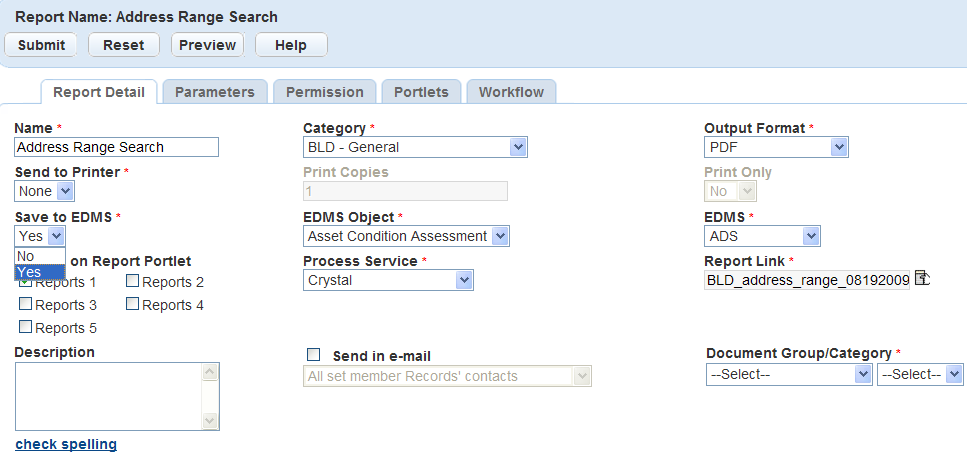
-
Complete the fields.
Field Field description Save to EDMS Choose Yes or No to specify whether or not to save to EDMS. If you choose Yes, Civic Platform activates the Document group/Category menu. Document group/category Use the lists to select the document group and document category to categorize the report. It is important to select the Document group first because the Category list loads based on which document group you choose. EDMS object Select the EDMS object type. Your options are: record, parcel, workflow, asset condition assessment, inspection, and set. EDMS Select the Electronic Document Management System to which you wan to save the report. -
To test the report, select Preview.
-
Select Submit.