Mark Crystal reports private
Civic Platform allows you to mark Crystal reports as either public or private. Marking a report as private makes it viewable only by users who are logged into Civic Platform and who have been granted secure access to the report via Report manager.
- This feature is supported for only SaaS agencies that are using Crystal Reports Server 2016 OEM Edition. Accela is creating a schedule to upgrade SaaS agencies using Crystal Reports Server 2008 OEM Edition to Crystal OEM 2016 server, and will contact your agency prior to migration.
- The new standard choice, CRYSTAL_OEM_SECURITY, is visible to all customers but will only enable the privacy functionality after the agency has migrated to Crystal Reports Server 2016 OEM Edition.
Enable security for Crystal reports
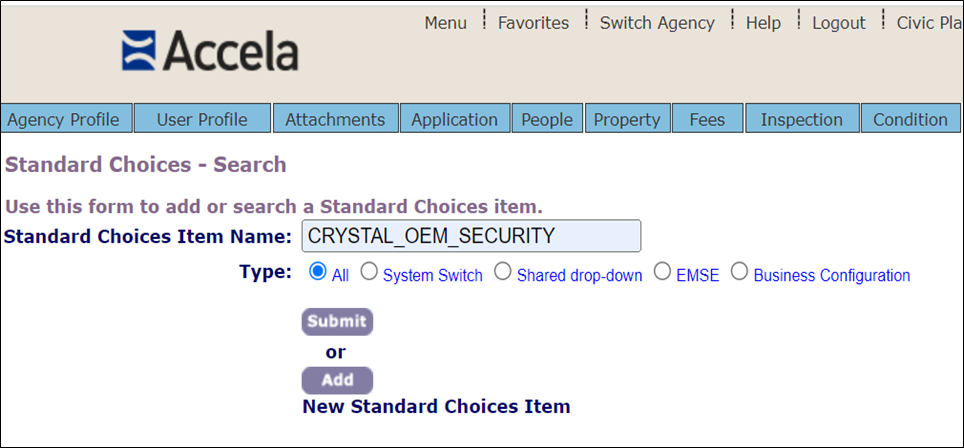
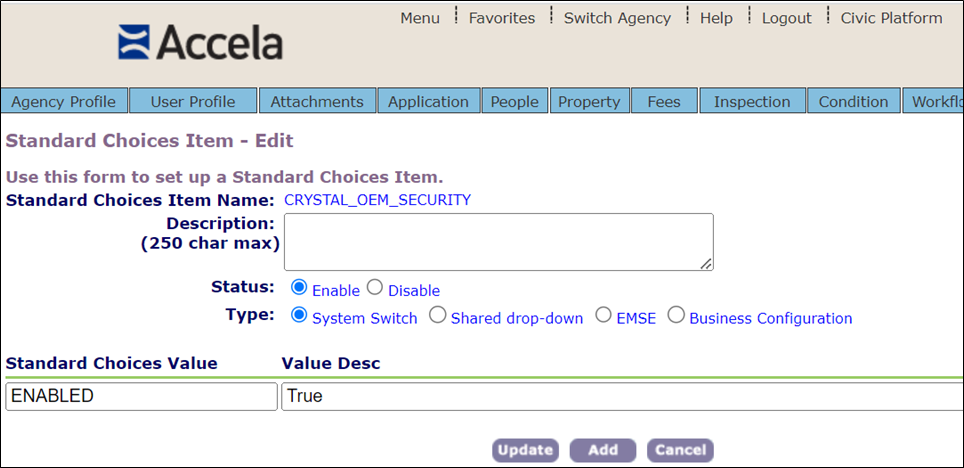
The standard choice, CRYSTAL_OEM_SECURITY, turns on the option to mark any Crystal report as either public or private in the Report detail tab of the selected report.
To set up report security
-
Set the Status for CRYSTAL_OEM_SECURITY to Enable and the Value description to True.
Change a report's security setting
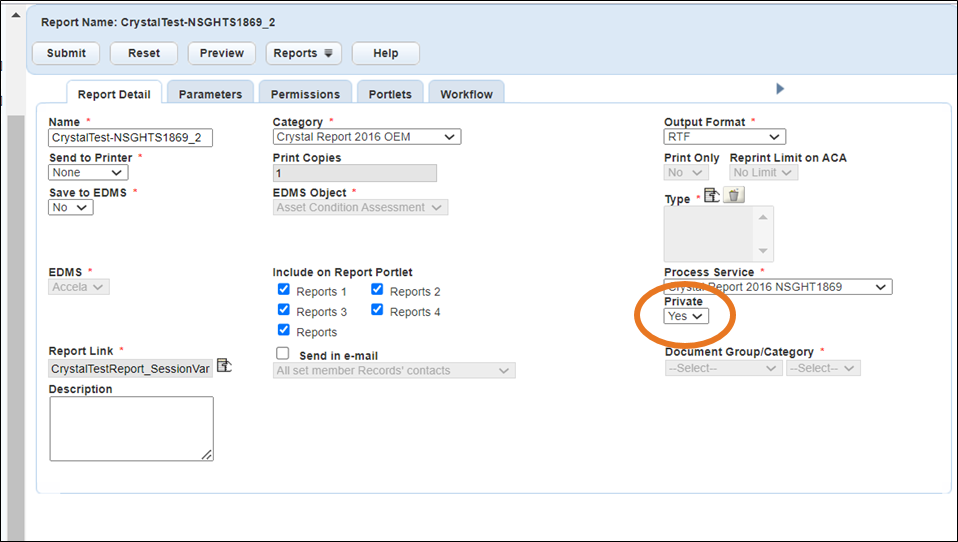
By default, each Crystal report is set as public (the Private option is set to No).
To change security for a report
-
Open the Report detail tab of the report you want to modify. Do one of the following:
- Under Private, select Yes to mark the report as private. This will make the report accessible to only Accela users who have permissions to view the private reports.
- Under Private, select No to mark the report as public.
-
Select Submit.