Register license
The Register license section of the Registration settings page provides configurations supporting license functionality during the registration and application process.

Topics
Require license
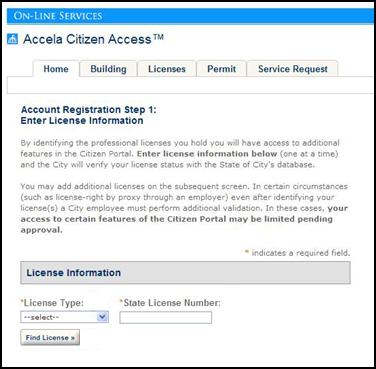
You can select the Require license check box to require a public user to associate at least one license when registering for an online account. When this feature is enabled, the first page of the registration process requires license information data entry. Only after the license information is validated, the applicant can proceed with registration process or add additional licenses.
If you require license from applicants, a Select from professionals button displays in the Contact section of the registration page. When applicants select the button, they can select an licensed professional with the associated license as the contact.
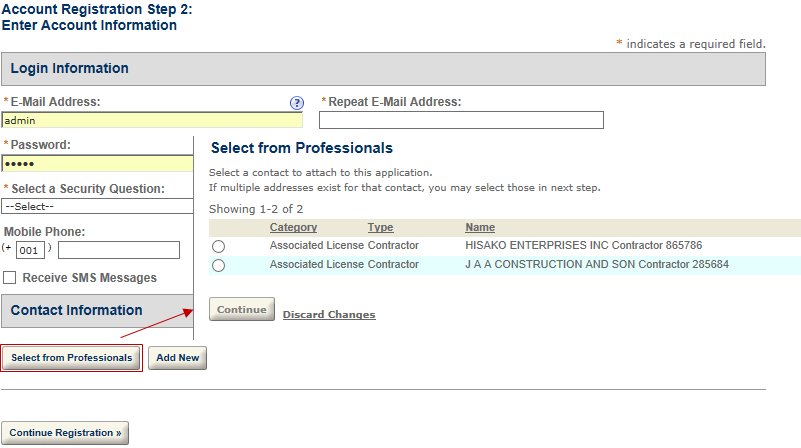
If you enable the Requiring License feature, you must also configure the settings for the associated emails, Registered license web page, License list web page, and Confirm license web page.
To require a license for registration
-
Navigate to General settings > Registration settings.
-
Go to the Register license area and select the Require license check box.
-
In Civic Platform, navigate to Administration > Setup > Communication manager > Notification templates.
-
Select the Validate citizen user notification template.
-
Customize the content of the email. Refer to the Notification templates section of the Accela Civic Platform Administrator Guide.
-
Select Save.
-
-
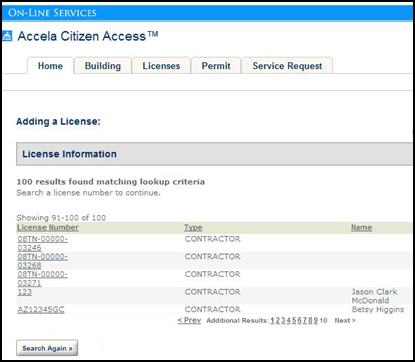
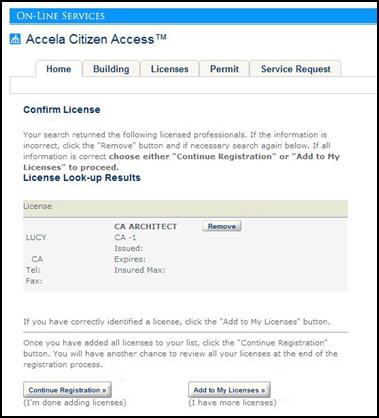
Customize associated web pages: Registration license, license list, and confirm license. Select each page from the Pages area in the navigation panel, customize labels, button text, or page content, and then select Save.
-
The Registration license page
-
The License list page
-
The Confirm license page
-
Disable add license
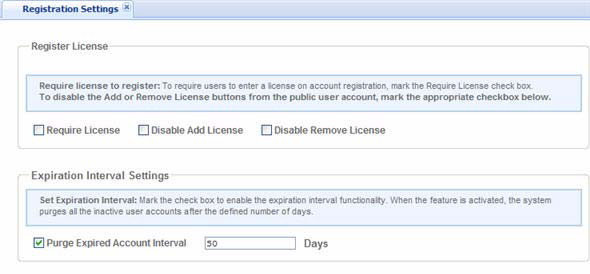
Administrators can configure the ability to accept an additional licensed professional on an application intake form or restrict the number of additional licensed professionals. If you want to restrict the number of licensed professionals on an application, mark the Disable add license check box and save the changes.
To restrict additional licensed professionals on an application
-
From the General area, navigate to the Registration settings page.
-
Go to the Register license section.
-
Select or clear the Disable add license check box to set the configuration.
-
Select Save.
Disable remove license
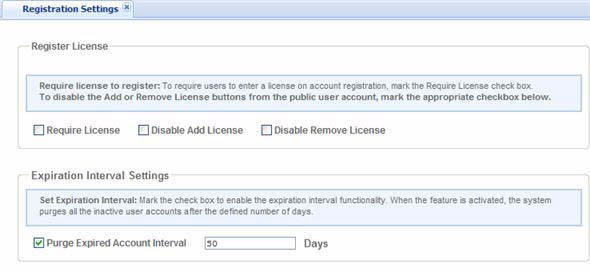
You can restrict applicants from removing an associated license with an application. You do this by hiding the Remove license button from display to public users.
To hide the remove license button
-
From the General area, navigate to the Registration settings page.
-
Go to the Register license section.
-
Select or clear the Disable remove license check box to set the configuration.
-
Select Save.